
Integrating Web Events 1.0
This purpose of this document is to provide Cheetah Digital Marketing Services' clients with a basic understanding of version 1.0 of the Web Event feature within the Cheetah Digital Messaging platform, as well as guidance on how to integrate Web Events with external websites.
Web Events allow an external website to inform the Messaging platform of specific activity that has occurred as the result of a customer clicking through to the website from a marketing Campaign. This activity is most commonly a purchase, but it could be any form of event or transaction that you need to track.
By using Web Events to inform the platform of your customers' actions on your website, you're able to utilize the Web Event data in four places – Campaign Reports, Marketing Intelligence Reports, Filters, and Campaign Triggers.
Note: Version 2.0 of Cheetah Digital provides all the same functionality as 1.0, but is designed to be easier to implement. For more details, see Integrating Web Events 2.0.
Overview
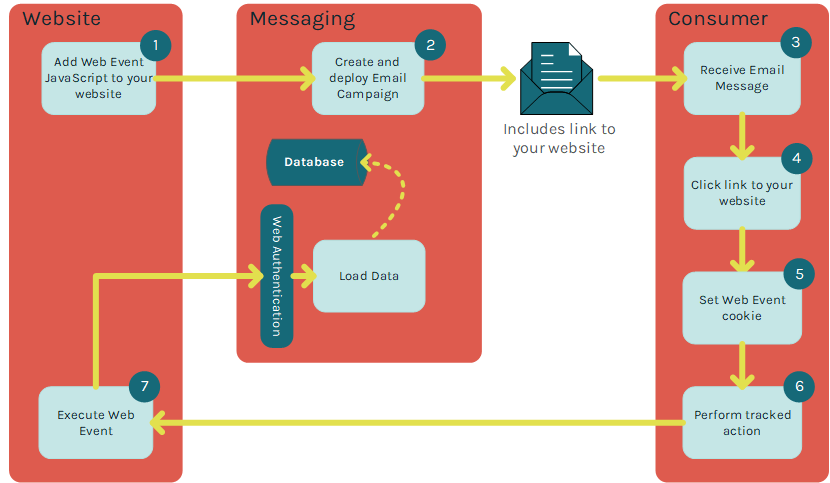
The following diagram depicts a typical process flow -- from the Messaging platform, to the consumer, to your website, and then back to Messaging.
Campaign reports
Because Web Events are always delivered to the platform as a result of a Campaign, the consumer action that caused the Web Event can be directly attributed to a specific Campaign. When a Web Event has been set up within the platform and your website, any consumer actions as a result of a Campaign will be shown in that Campaign’s Report.
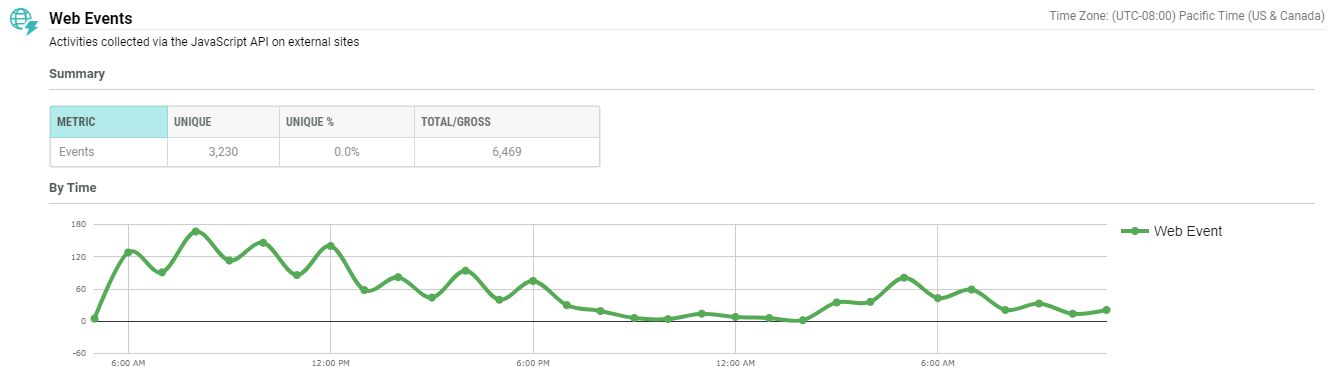
The Campaign Report will provide a count for the total and unique number of events that occurred as a result of the Campaign. This Report allows you to measure and track the effectiveness of your marketing message in driving customers to your website, and performing the desired action (such as making a purchase).
Currently, no other data (for example, Order Value or Amount) is available within the Operational Campaign Reports, even if specified in the Web Event. However, the platform provides a set of standardized Web Event parameters that may be used in conjunction with the Marketing Intelligence (MI) reports. These reports will allow you to view summarized data on web parameters (for example, Total Purchase Amount).
Marketing intelligence reports
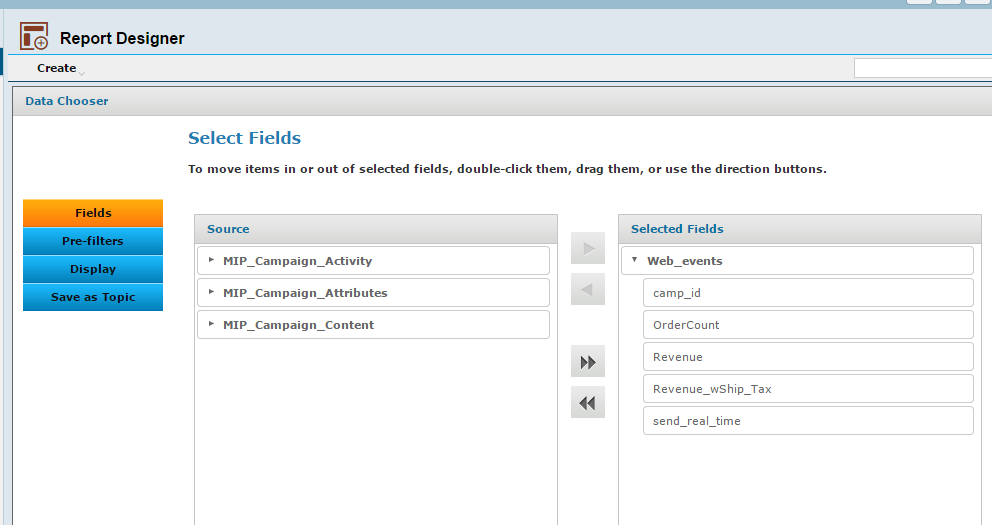
Standard Web Event data can be reviewed directly from your Marketing Intelligence reports. Please refer to the Web Event Function section for information on the standard parameters and how to set up the code for data capture.
Once the respective parameters have been implemented, reports can be generated in Messaging by choosing to create a new report, clicking "Domains," and selecting on one of the available Domains.
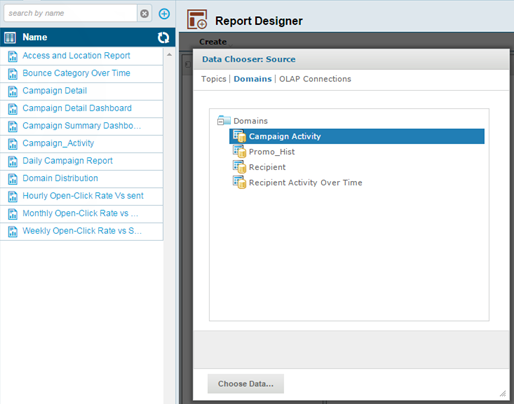
After selecting the Domain, you next choose the desired fields from the Report Designer, then generate the report.
Filters
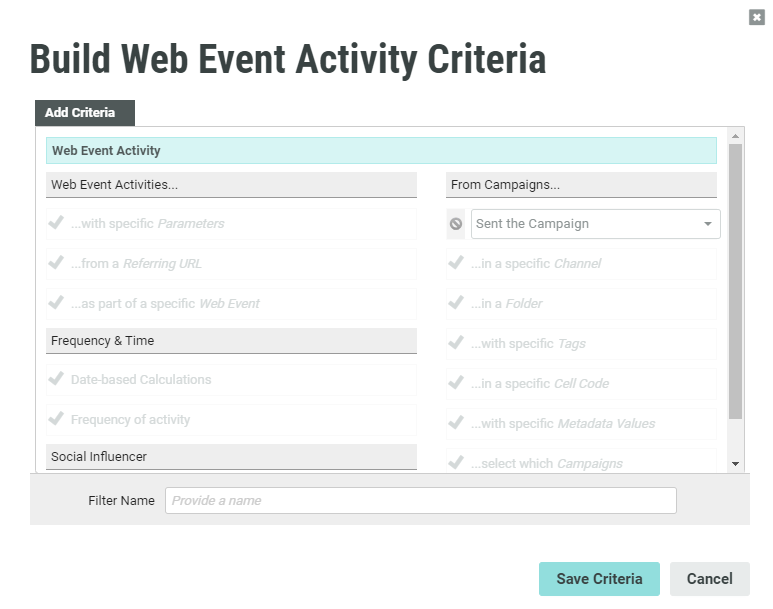
Web Event data can also be utilized in Filters. For example, you could use a Filter to create an Audience of customers who performed a specific Web Event, in order to target those customers with a follow-up Campaign message.
When creating the business rules and criteria for a Filter, the “Activities & Items” section offers an option called “Web Events." This feature provides a number of different options and variables, such as anyone that had a Web Event within a certain time frame, or a Web Event associated with a specific Campaign. You can also set custom parameters such as a "Total," then filter based on these (for example, anyone that had a Web Event in the last 10 days, with a "Total" value over 100).
Campaign triggers
Web Events can also be used as the trigger mechanism for an Event-Triggered Campaign. This feature can be particularly useful for driving near-real-time Campaigns, as an action on a website (or Mobile App.) can trigger the send of a specific Campaign.
When defining the Web Event trigger, the platform offers several options and variables, such as from a specific URL or a specific Web Event.
Note: If you're passing multiple values in a parameter and want to query against a single value, you must use a set of percent signs ("%") around the value (e.g. category_code = %cars%).
Implementing Web Events
This section describes in more detail how to implement Web Events, and what the responsibilities are for Cheetah Digital Client Services and for you.
Cheetah Digital's role
The Implementation and Account teams at Cheetah Digital Client Services will discuss the requirements that the Web Event feature will fulfill within the system. Based on the results of this analysis, the teams will create two objects within Messaging:
-
Web authentication
-
Web event
The Web Authentication object is used to authorize the data being sent back to the platform and to ensure that it's assigned to the appropriate Campaign. Typically, the teams use the platform’s "Tracking Parameters."
The Web Event is the object that enables data to be collected by the platform, and determines what custom data is accepted (for use in Filters).
The Cheetah Digital Client Services team will then supply you with two pieces of code (described below) to be added to your website.
Your role
Web Events are implemented with two pieces of code:
-
Web Event SDK -- Every page on your site will have this code. This piece of code will “cookie” customers who click through a Campaign message deployed by Messaging. This cookie allows your website to subsequently report on the transaction if a customer completes the specified action (such as completing a purchase, for example).
-
Web Event Function – This code is the mechanism that sends the transaction data back to your Messaging account and allows the platform to report on the data.
The typical process flow is as follows:
-
A Campaign recipient clicks through your Campaign message and lands on site.
-
A cookie is set by the Web Events SDK.
-
The customer performs the specified action on your website.
-
When the action is complete, the “goal” page contains the Web Event function which fires off the pixel.
Integrating with your website
This section provides technical details on how to integrate the Web Event code into your website
Javascript SDK
The SDK code should be implemented on all pages of your site. It will carry through any Messaging-specific data values that are required for the Web Event process.
Note: if your site utilizes Tag Managers (e.g. Google Tag Manager, Signal Tag, etc.), please see the Web Events and Tag Managers section below).
The code below is example code and should not be used on your site.
<!-- ECCMP SDK Code - WebEvents Add to Bottom of All Pages like Google Analytics -->
<!-- If JQUERY is defined on page will use that otherwise makes call to Latest version -->
<!-- Sets Cookie for traffic coming from emails to site saving TP (Tracking Param) value -->
<!-- tp={(TrackingParams)} should be added to append Tracking in platform -->
        <script type="text/javascript">
        //Conversen SDK
        window.cnvAsyncInit = function () {
        Cnv.init({
        custId: 'xxx',
        entityId: '100',
        restLink: 'sts.eccmp.com',
        enableFacebook: false,
        enableSocialEvents: false,
                         });
                        };
        (function () {
         var cnv = document.createElement('script');
         cnv.async = true;
         var cnvJsHost = (("https:" == document.location.protocol) ? "https://sts.eccmp.com" : "http://sts.eccmp.com");
         cnv.src = cnvJsHost + '/sts/scripts/conversen-SDK.js';
         document.getElementsByTagName('body')[0].appendChild(cnv);
                        } ());
        </script>
Note: The ‘entityId’ above should reference the ID for one of your execution tables. If you have any questions on what this value should be, please reach out to your Account Manager.
Web Event functions
Messaging offers two options for implementing the Web Event function -- Aggregate Order Level and Product Level Information.
Note: When creating the Web Event in the platform, the parameters entered are the ones under the “Parameter Name” column.
-
Option 1: Aggregate order level
With this implementation option, a single Web Event is executed from your goal page (such as an order confirmation page). The Marketing Intelligence tool will report on the overall metrics, like total order value. The following table lists the expected values and data types.
Parameter Name Input Parameter Type Description Example OrderId Campaigns_Orders_OrderID String (4000) Your order ID 1 OrderDate Campaigns_Order_Date Date Order confirmation date 1/1/2026 23:59
OrderProducts Campaigns_Orders_Products Integer Total number of products 5 OrdersTotalPrice Campaigns_Orders_Totalprice Money Total price of the order 499.99 OrderSource Campaign_Order_Source String Source of Order Desktop, mobile, etc. Variable1 Variable1 String Additional param if needed Variable2 Variable2 String Additional param if needed The code below is example code and should not be used on your site.
Copyfunction WebEvent() {
var webEventId = x;
var paramObj = {};
paramObj.Campaigns_Orders_OrderID = "value";
paramObj.Campaigns_Orders_Date = "value";
paramObj.Campaigns_Orders_Products = "value";
paramObj.Campaigns_Orders_Totalprice = "value";
paramObj.Campaigns_Orders_Source = "value";
paramObj.Variable1 = "value";
paramObj.Variable2 = "value";
Cnv.PostWebEvent(paramObj, webEventId);
} -
Option 2: Product level information
Reporting may be desired at a product level instead of an aggregate level. In that case, the Web Event function can be implemented in an iterative fashion. An alternate set of fields will also be required, as described below:
Parameter Name Input Parameter Type Description Example OrderId Campaigns_Orders_OrderID String (4000) Your generated order ID 1 OrderDate Campaigns_Order_Date Date (YYYY-MM-DD HH:MM:SS) Order confirmation date 1/1/2026 23:59
ProductId Campaigns_Orders_ProductsID String The product unique identifier from your catalogue XYZ123 ProductName Campaigns_Orders_ProductsName String The product name Laptop X123456 Product Description Campaigns_Orders_ProductsDescription String The product description A really powerful, lightweight laptop ProductQuantity Campaigns_Orders_ProductQuantity Integer The product quantity 5 ProductPrice Campaigns_Orders_ProductsPrice Decimal The product unit price 499.99 ProductCategoryId Campaigns_Orders_ProductsCategoryId String The product category unique identifier 123456789 ProductCategoryName Campaigns_Orders_ProductsCategoryName String The product category name Computers & Laptops OrderSource Campaign_Order Source String Source of order Desktop, mobile, etc. OrderTotalPrice Campaigns_Orders_Totalprice Money Total price of the order 899.99 Variable1 Variable1 String Additional param if needed Variable2 Variable2 String Additional param if needed The code below is example code and should not be used on your site:
Copyfunction WebEvent() {
var webEventId = x;
var paramObj = {};
paramObj.Campaigns_Orders_OrderID = "value";
paramObj.Campaigns_Orders_Date = "value";
paramObj.Campaigns_Orders_ProductsID = "value";
paramObj.Campaigns_Orders_ProductsName = "value";
paramObj.Campaigns_Orders_ProductsDescription = "value";
paramObj.Campaigns_Orders_ProductsQuantity = "value";
paramObj.Campaigns_Orders_ProductsPrice = "value";
paramObj.Campaigns_Orders_CategoryID = "value";
paramObj.Campaigns_Orders_CategoryName = "value";
paramObj.Campaigns_Order_Source = "value";
paramObj.Campaigns_Orders_Totalprice = "value";
paramObj.Variable1 = "value";
paramObj.Variable2 = "value";
Cnv.PostWebEvent(paramObj, webEventId);
}Note: In the above example, the code would be output a number of times, which would be determined by the number of products purchased. If a customer purchased three items, then the code would need to be generated three times.
Web Events and Tag Managers
If you use Tag Managers, such as Google Tag Manager or Signal Tag, on your site, Web Events will need to be implemented slightly differently. Most Tag Managers will try to execute each tag simultaneously. In order for the Messaging Web Events to process correctly, the SDK must download prior to the execution of the Web Event Function. As such, a second SDK (EECMP Conversion SDK) will be provided that will include an "on success" call that will execute the Web Event Function upon the successful download of the original ECCMP SDK.
Implementing Web Events with Tag Managers
As noted above, the ECCMP SDK will need to be implemented on every page a user could potentially land on as a result of a Messaging Campaign, except for the page where the Conversion will take place. On the Conversion page, the ECCMP Conversion SDK will need to be implemented. As mentioned previously, the ECCMP Conversion SDK will include the Web Event Function and an "on success" call to trigger the function once the SDK has downloaded.
The code below is example code and should not be used on your site.
<script type="text/javascript">
function WebEvent() {
var webEventId = x;
var paramObj = {};
paramObj.OrderDate = "value";
paramObj.OrderID = "value";
paramObj.OrderTotalPrice = "value";
paramObj.ProductCategoryName = "value";
paramObj.ProductID = "value";
paramObj.ProductPrice = "value";
paramObj.ProductQuanity = "value";
paramObj.ProductsCount = "value";
paramObj.Variable1 = "value";
paramObj.Variable2 = "value";
Cnv.PostWebEvent(paramObj, webEventId);
}
 //Conversen SDK
window.cnvAsyncInit = function () {
Cnv.init({
custId: 'x',
entityId: 'x',
restLink: 'sts.eccmp.com',
enableFacebook: false,
enableSocialEvents: false,
success: WebEvent
} );
};
(function () {
var cnv = document.createElement('script');
cnv.async = true;
var cnvJsHost = (("https:" == document.location.protocol) ?
"https://sts.eccmp.com" : "http://sts.eccmp.com");
cnv.src = cnvJsHost + '/sts/scripts/conversen-SDK.js';
document.getElementsByTagName('body')[0].appendChild(cnv);
} ());
</script>
Campaign management
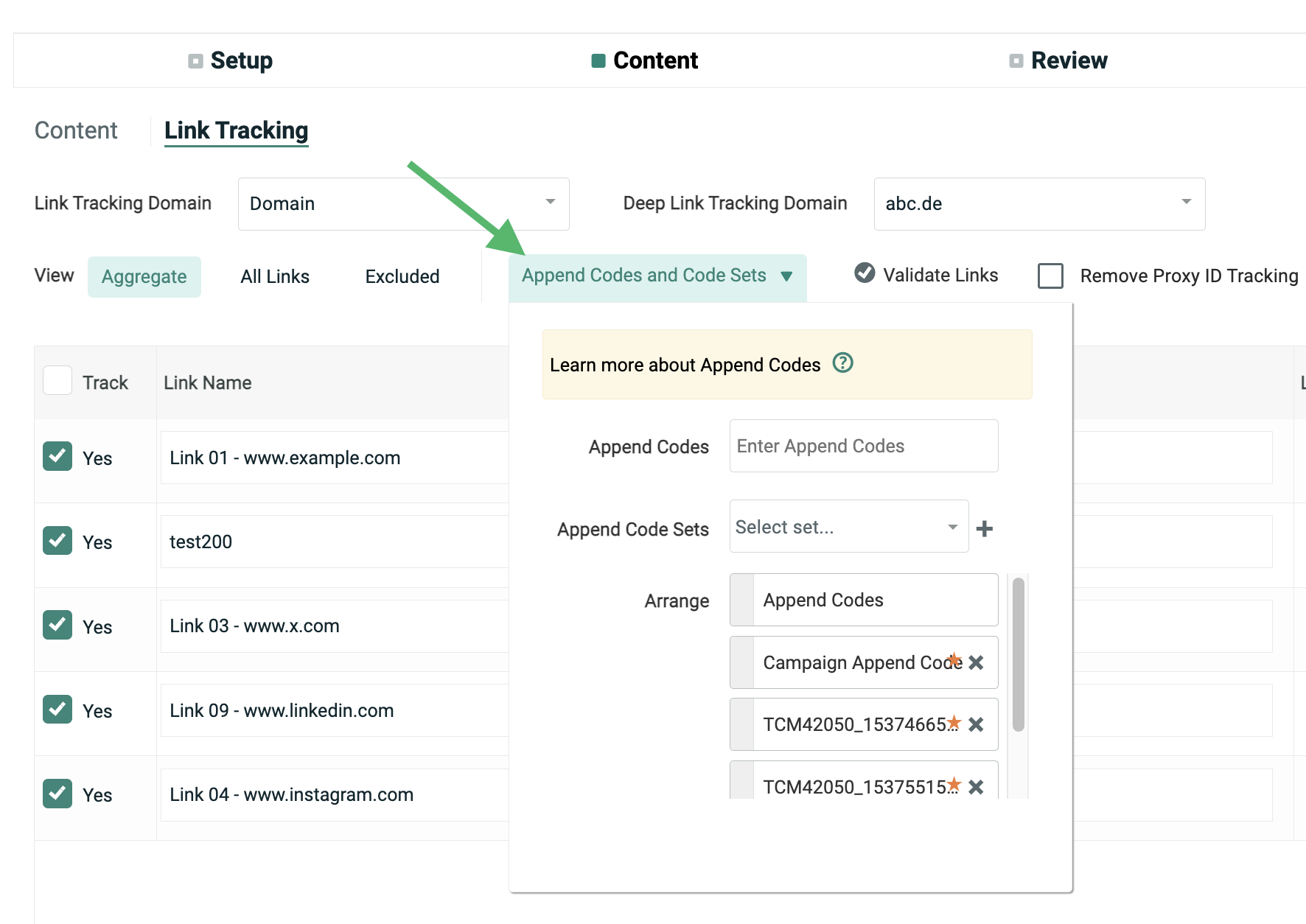
For Messaging to authorize and process the data sent by the Web Event appropriately, the code on your website will need to know the specific information to send back. This functionality is commonly done through the use of the platform’s "Tracking Parameters" (other options can be explored with the Implementation team if required).
This “Tracking Parameters” tag will need to be appended to all links within the Responses section of all Campaigns (or manually hardcoded to each link), as shown here.
Implementing Web Events without Tag Managers
For clients who don't use a tag manager, below is an example of code that will run on success of the SDK downloading, and will execute a Web Event for each item in the order:
<script type="text/javascript">
function WebEvent() {
var webEventId = 1 ;
const orderitems = [
    {
        Campaigns_Orders_OrderID: "VALUE",
        Campaigns_Orders_Date: "VALUE",
        Campaigns_Orders_ProductsID: "VALUE",
        Campaigns_Orders_ProductsName: "VALUE",
        Campaigns_Orders_ProductsDescription: "VALUE",
        Campaigns_Orders_ProductsQuantity: "VALUE",
        Campaigns_Orders_ProductsPrice: "VALUE",
        Campaigns_Orders_CategoryID: "VALUE",
        Campaigns_Orders_CategoryName: "VALUE",
        Campaigns_Order_Source: "VALUE",
        Campaigns_Orders_Totalprice: "VALUE"
    },
    {
        Campaigns_Orders_OrderID: "VALUE",
        Campaigns_Orders_Date: "VALUE",
        Campaigns_Orders_ProductsID: "VALUE",
        Campaigns_Orders_ProductsName: "VALUE",
        Campaigns_Orders_ProductsDescription: "VALUE",
        Campaigns_Orders_ProductsQuantity: "VALUE",
        Campaigns_Orders_ProductsPrice: "VALUE",
        Campaigns_Orders_CategoryID: "VALUE",
        Campaigns_Orders_CategoryName: "VALUE",
        Campaigns_Order_Source: "VALUE",
        Campaigns_Orders_Totalprice: "VALUE"
    }
];
for (var i=0; i<orderitems.length; i++){
    var paramObj = orderitems[i];
    Cnv.PostWebEvent(paramObj, webEventId);
}
}
//Conversen SDK
window.cnvAsyncInit = function () {
Cnv.init({
custId: 'xxxx',
entityId: 'xxxx',
restLink: 'sts.eccmp.com',
enableFacebook: false,
enableSocialEvents: false,
success: WebEvent
} );
};
(function () {
var cnv = document.createElement('script');
cnv.async = true;
var cnvJsHost = (("https:" == document.location.protocol) ?
"https://sts.eccmp.com" : "http://sts.eccmp.com");
cnv.src = cnvJsHost + '/sts/scripts/conversen-SDK.js';
document.getElementsByTagName('body')[0].appendChild(cnv);
} ());
</script>